Indexation
Part of SEO during website changes
Monitoring organic traffic after a migration by page group
Track old and new page groups after a migration, compare Search Console and analytics carefully, and investigate losses by URL.
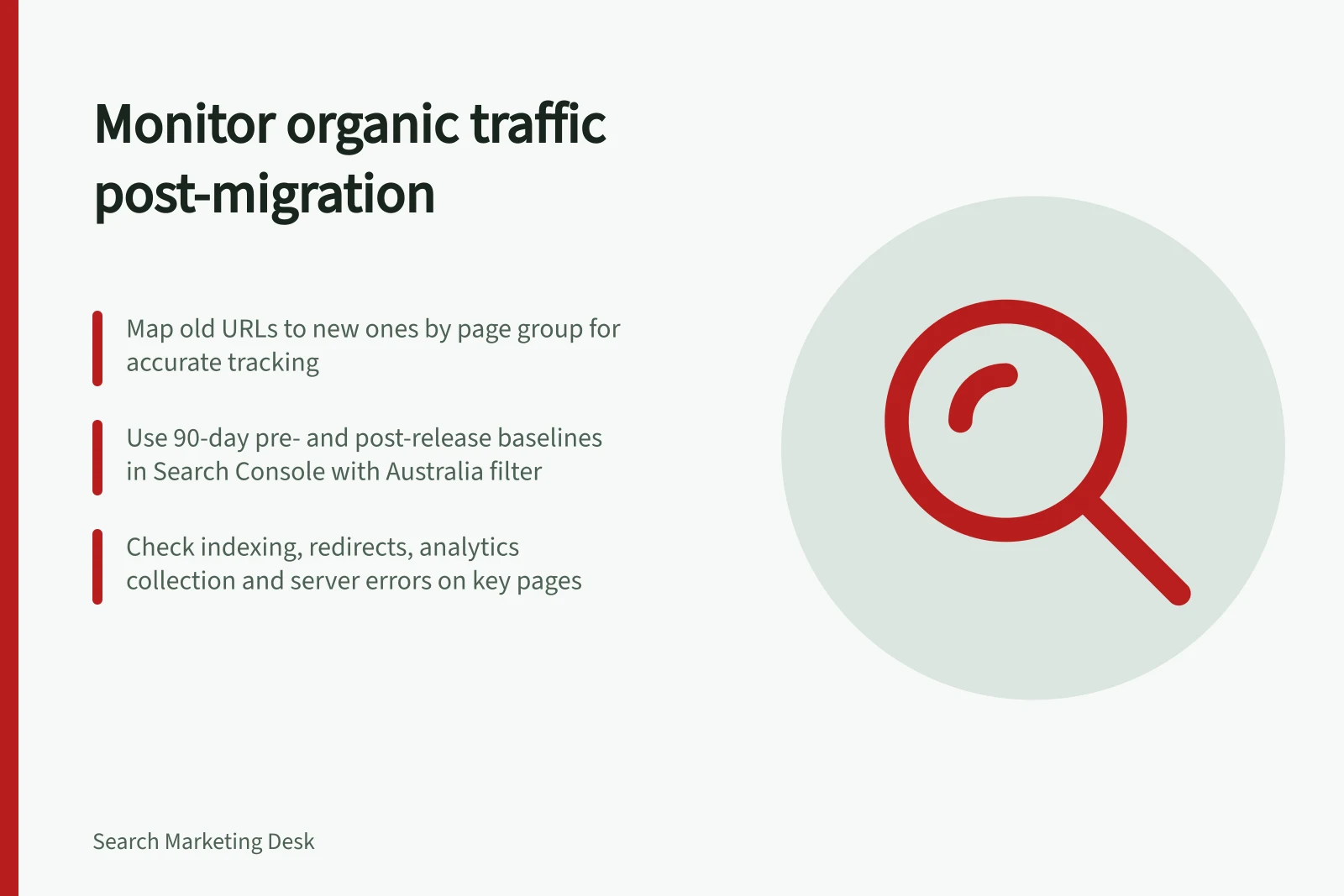
Monitor a URL or domain migration by pairing each old page with its intended replacement and comparing equivalent page groups. Record the release date, old-to-new mapping and 90-day pre-release baseline, then keep monitoring through the first 90 days after release. A site-wide total can hide a broken service page, while falling clicks on an old URL may accompany Google gradually showing its replacement.
Compare page groups
Group URLs by purpose—services, categories, products or guides—and keep each old address beside its intended replacement. Compare same-purpose groups rather than relying on a site-wide total.
Use the 90 days before release as the baseline window and compare it with the first 90 days after release. Keep Search Console search type, country and device filters consistent, and note seasonality, campaigns, content changes and analytics changes.
For an Australian business, the Australia country filter can focus on searches originating in Australia. It does not prove that each person is within a particular service area.
For a domain move, use Search Console’s Change of Address tool. If the migration crosses Search Console properties, review both where the team has access; do not judge the outcome from the old property alone.
Old vs New Page Group Performance: Key Metrics to Monitor
- Clicks
- Compare pre- and post-migration clicks for each page group
- Impressions
- Track visibility changes in Search Console for equivalent page groups
- CTR (Click-Through Rate)
- Evaluate performance efficiency after migration
- Rankings
- Monitor position shifts for old and new URLs over time
Read search visibility and site visits separately
Use Search Console’s Performance report to compare old and intended new URLs within each group. Review Clicks, Impressions, CTR and rankings, and check the old and new properties individually. Google may take time to show new URLs in search results instead of the old ones.
Use Search Console’s Index status report for overall indexing and its Sitemaps report to check how many submitted URLs are indexed. Submitting a sitemap can help Google discover moved URLs sooner.
If GA4 is configured, use its Traffic acquisition and Landing page reports to investigate visits associated with the old and new site. Check the host separately when a domain move makes identical paths possible on old and new sites. These are recorded sessions under analytics definitions, not Search Console clicks; the counts need not match. Check collection on new templates before treating a session decline as a search decline.
| Observation | Next check |
|---|---|
| Old-page clicks fall and replacement-page clicks rise | Does the new page answer the same task, and which URLs receive credit in Search Console? |
| Search clicks hold but recorded sessions fall | Did analytics collection, consent settings or landing-page tracking change? |
| Impressions and clicks fall for one page group | Check redirects, access, indexing status, content and query mix for that group. |
| Many groups fall together | Review shared templates, server errors, release changes and wider search context. |
Post-Migration Traffic Indicators: What to Watch
- Search Console Clicks Drop
- May indicate indexing delay or redirect issues
- GA4 Sessions Decline
- Could reflect tracking changes, not search traffic loss
- Impressions Fall by Page Group
- Suggests problems with content, queries or access
- Multiple Groups Affected
- Points to shared template, server or deployment issues
Watch failures as well as totals
Inspect important old and new URLs individually. Check server access and error logs for requests to old addresses and unexpected error responses. Requesting a mapped old address directly can expose a wrong destination before its effect is clear in a report.
Google’s site-move guidance says rankings may fluctuate while it recrawls and reindexes moved pages. For medium-sized sites, Google may take weeks or more to show new URLs instead of old ones; larger sites can take longer, and Google sets no fixed crawl frequency.
A single day is a poor verdict, but a reproducible 404, blocked template or irrelevant redirect warrants prompt correction. Separate a technical failure visible now from a search trend that needs more context.
Key Checks After a Site Migration
- Verify server access and error logs for old URLsCheck for 404s, blocked templates or incorrect redirects
- Confirm indexing status via Search ConsoleUse Index Status and Sitemaps reports to validate discovery
- Review analytics collection on new templatesEnsure GA4 is capturing sessions correctly post-migration
- Check consistency across propertiesFor domain moves, review both old and new Search Console properties
Finish with a decision
Review shortly after release and continue through the first 90 days. Keep a recurring record of page group, old and new URLs, comparison periods, Search Console pattern, analytics pattern, technical checks and next owner.
If a decline persists, investigate the affected URLs and common migration failures before attributing it to one release change. Identify which page tasks have recovered, which have not and what evidence supports the next action.
Do not treat every traffic movement as caused by the migration.
Steps to Monitor Organic Traffic After Migration
- Define page groups by purposeGroup services, products, categories or guides for comparison
- Establish 90-day baselineUse pre-migration data as reference for performance
- Pair old and new URLsMap each old address to its intended replacement
- Monitor through first 90 daysTrack trends beyond single-day fluctuations
- Investigate persistent declinesLook at technical, content and tracking factors
- Document findings and assign ownershipKeep records of actions, evidence and next steps