Technical Audits
Part of Technical SEO audits
Separating a crawl symptom from its underlying cause
“Crawled, not indexed” or a sudden error count describes an observation. It does not say whether the root cause is a server response, rendering problem, duplicate …
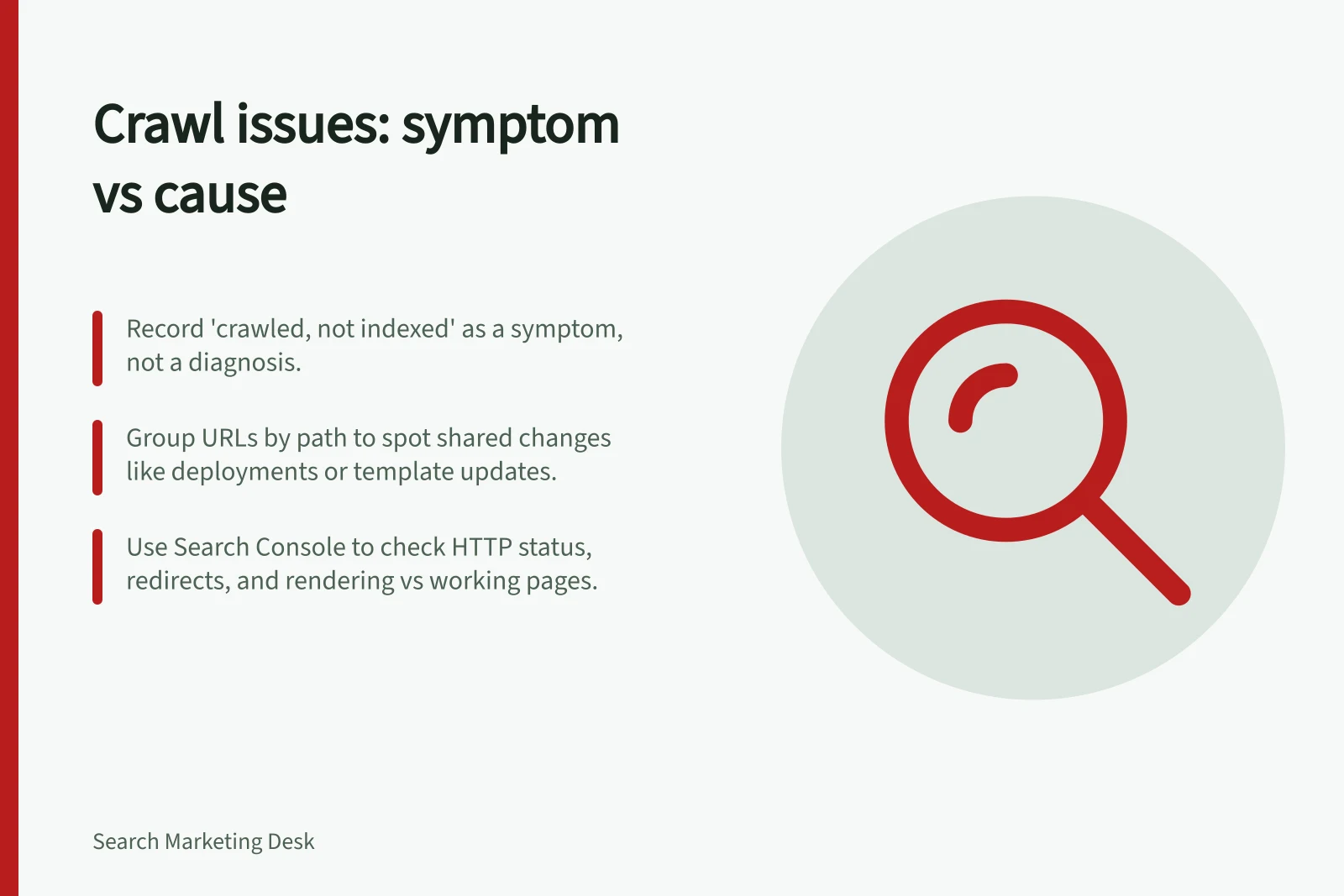
Start by recording the observation: “Crawled, not indexed”, a rising error count, or a group of URLs that is not being crawled. Treat it as a symptom, not a diagnosis; the observation alone does not identify whether the cause is availability, access, rendering, content or Google's selection.
Group affected URLs by path or template and compare them with a working page on the same template. A pattern shared across pages points you towards a shared change, such as a deployment, template, firewall, server capacity or content feed; an isolated issue calls for checking that URL's data and internal route.
Inspect the affected URL's HTTP status, redirect route, access rules, rendered content and resources, then compare the results with the working page. A successful HTTP response does not prove that the crawler received useful rendered content or that the resources it needs loaded.
Use Search Console's URL Inspection for individual pages and the indexing report for broader patterns and trends. Use Crawl Stats to review Googlebot's crawling history and site availability: if the Host availability graph crosses the red limit line, open it to see which URLs were failing and correlate those failures with issues on your site.
A Hostload exceeded warning in URL Inspection means Googlebot cannot crawl as many URLs from your site as it discovered. If the warning, failing URLs and a site availability issue line up, investigate shared availability or capacity; the warning is evidence of a crawl constraint, not by itself an explanation for why a particular page is not indexed.
Check server logs when you need to know whether specific URLs were crawled. Logs can show which URLs Google hits, when, how often and what status codes it encounters; a matching request gives you evidence about that URL's crawl, while no matching request means your logs do not show a fetch.
If logs do not show a fetch, investigate whether Google knows about the URL, whether access is blocked, or whether site availability is limiting access. If a URL was crawled but its rendered content is empty or missing, investigate rendering or the content feed rather than treating the crawl observation as the cause.
For example, test the statement “this template renders an empty product description to the crawler after a feed failure” against the affected page's rendered content and a working page on the same template. If a duplicate or very similar URL exists, Google's selection of a canonical URL is another possible explanation; the crawl symptom alone does not establish it.
After a fix, repeat the checks that identified the problem: review the relevant Crawl Stats graph and failing URLs, test the URL in URL Inspection, check the server log and confirm the expected content renders. A changed error count alone does not show that the crawler now receives the intended page; record the evidence that changed and retest the cause.