Ecommerce Search
Part of Measuring organic search performance
Connecting organic visits with useful business actions
Define useful actions, check GA4 event collection and review organic sessions alongside enquiry, booking or purchase records.
Connect organic visits to useful business actions by defining the action, checking how it is recorded and reviewing it for organic sessions. A visit, a submitted form and a suitable customer enquiry are different outcomes. Name each stage before comparing numbers.
Define the action
For each important page group, choose the next step the business needs to recognise: a completed enquiry, booking or purchase. A phone-number click may show interest, but it does not confirm that a call connected or that the customer could be served.
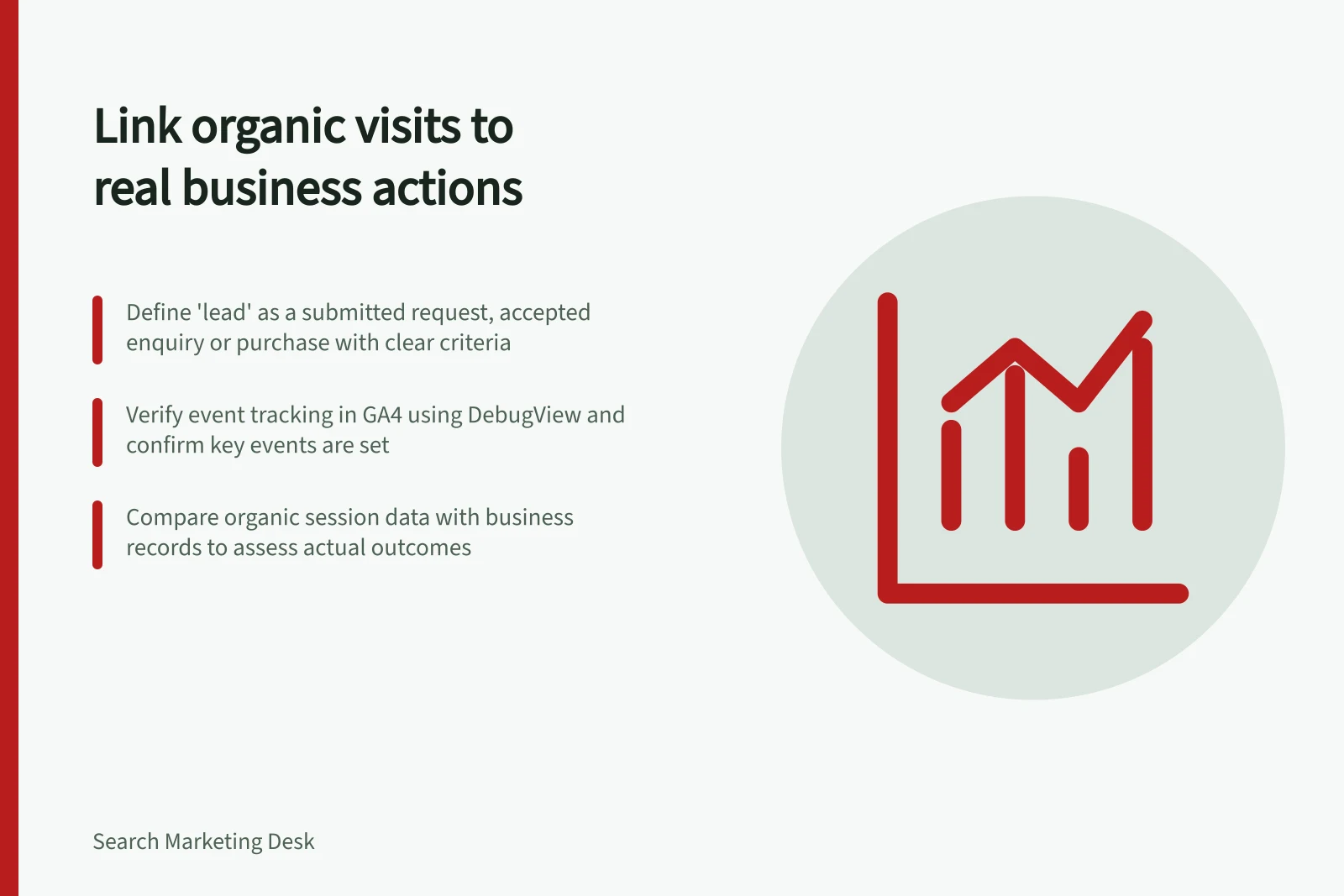
Define “lead” precisely. It could mean a submitted request, an enquiry accepted by staff or a customer who purchased. If suitability matters, agree on criteria such as the requested service and coverage area, then review the relevant business records.
| Stage | Evidence | Limit |
|---|---|---|
| Organic arrival | Session with an organic search source | A session is not a Search Console click. |
| Website action | Event triggered by the intended completion | A button click is not a completed enquiry. |
| Business quality | Enquiry, booking or order record | Website analytics may not establish suitability or an offline outcome. |
Verify the event definition
If GA4 is used, consult Google’s documentation on recommended events when deciding how to record a submitted request or a completed purchase. The relevant Google Analytics Help page is titled “[GA4] Recommended events”.
An event representing an important action can be marked as a key event in GA4. The relevant Google Analytics Help page is titled “Mark events as key events”; consult it for the specifics.
Check the trigger against the actual completion path, then use DebugView or Realtime to check collection after setup. Record the event name, trigger and introduction date.
Consult Google’s “Mark events as key events” documentation when checking how key events are configured. These are checks to perform on a configured property, not results from this site.
Verifying GA4 Event Collection for Key Actions
- Consult Google’s [GA4] Recommended events documentation
- Mark the event as a key event in GA4
- Check trigger against actual completion path
- Use DebugView or Realtime to verify collection post-setup
- Record event name, trigger and introduction date
Review organic sessions and landing pages
Google provides documentation titled “[GA4] Traffic acquisition report” and “Default channel group”. Consult those resources for how GA4 defines traffic sources and channels. When reviewing a property, check the source and medium recorded for organic sessions.
Google provides a “[GA4] Landing page report” resource. Consult it for how landing pages are defined and reported in GA4. Review the landing page together with the traffic source information available in the property. A key event shown with a landing page does not prove the action happened on that page or that the page alone caused it.
Keep the session source, page group and action definition visible beside the figure. Event counts can also differ from the number of sessions in which an event occurred; use the measure that answers the question.
Key GA4 Reports for Organic Session Analysis
- Traffic Acquisition Report
- Defines traffic sources and channels in GA4
- Landing Page Report
- Defines and reports landing pages in GA4
- Default Channel Group
- Standard channel definitions in GA4
Check business usefulness
Compare submitted enquiries with those that met the business’s criteria, using consistent periods and definitions. For purchases, check that the event represents a completed order and decide whether later refunds or cancellations matter to the business measure.
Google provides a Search Console Help page titled “Performance report (Search results): Troubleshooting data discrepancies”. Consult it when investigating differences between reported figures. If clicks rise while the chosen action stays flat, inspect the page’s promise, availability, action path and tracking. That pattern calls for investigation; it does not prove what caused the result.